Guide: setting up kiosk time tracking
Turn a tablet into a shared time clock station with PIN code for your employees.
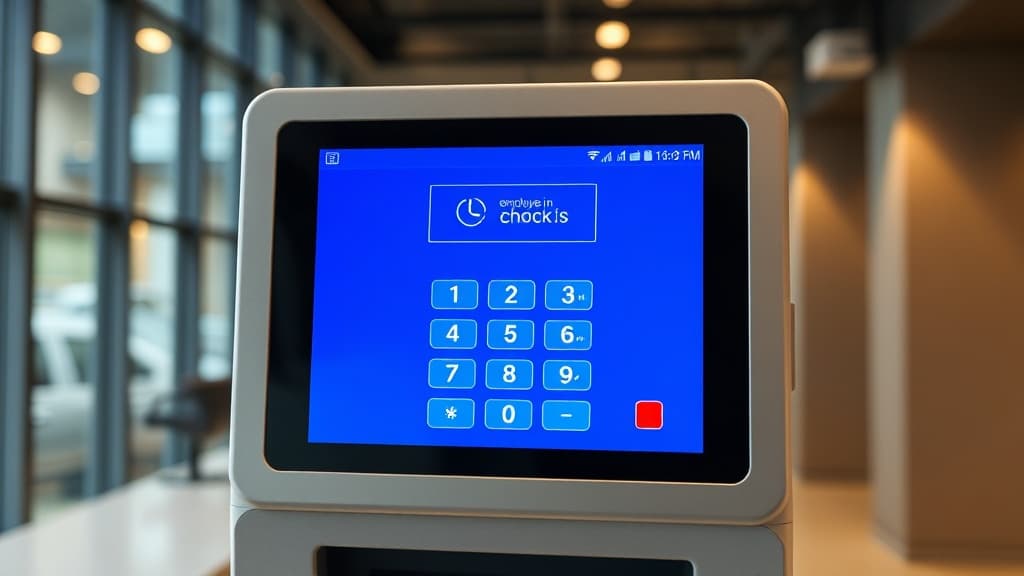
Kiosk mode turns a tablet or computer into a shared time clock station. Your employees identify themselves with a 4-digit PIN code to clock in and out, without needing a personal account on the device. This guide covers complete kiosk setup, PIN assignment, the clocking process, and best practices for a successful deployment.
Prerequisites
Before setting up a time clock kiosk, make sure you have the following:
- A device with a web browser: tablet recommended (iPad, Samsung Galaxy Tab, or any Android device with an 8-inch minimum screen). A computer or smartphone can also be used.
- A stable internet connection (Wi-Fi or Ethernet) at the clocking location.
- Your tenant ID (unique identifier of your establishment, provided by your administrator or visible in Settings > Establishment).
- An Administrator role to configure employee PIN codes.
- At least one service with assigned employees.
Recommended hardware: for professional daily use, we recommend a 10-inch tablet with a wall or desk mount. Plan for a permanent power cable and a silicone protective case.
1. Configure the kiosk
Initial setup steps
- On the dedicated clocking device, open the web browser (Safari, Chrome, or Firefox).
- Navigate to the following URL: orkelis.app/kiosk?tenantId=YOUR_TENANT_ID (replace YOUR_TENANT_ID with your establishment identifier).
- The kiosk home screen appears with:
- A real-time clock (time and date).
- Your establishment name.
- The list of your employees with their profile photos (or initials).
- A numeric keypad for PIN entry.
- The tenant ID is automatically saved in the browser's local storage. For future visits, the URL orkelis.app/kiosk is sufficient.
- Verify that all your employees appear in the list. If some are missing, check their service assignment.
Switch to full-screen mode
For optimal use in a professional environment, enable full-screen mode:
- On iPad: tap the share button, then Add to Home Screen. The app will open in full screen without a navigation bar.
- On Android tablet: open the Chrome browser menu, tap Add to Home Screen. The Orkelis Kiosk icon appears.
- On computer: press F11 to go full screen, or use the full-screen button provided by the kiosk interface.
iOS kiosk mode: on iPad, you can use Guided Access mode (Settings > Accessibility > Guided Access) to lock the device to the Orkelis kiosk page and prevent employees from navigating to other applications.
2. Assign PIN codes to employees
Each employee using the kiosk must have a unique 4-digit PIN code. Assignment is done from the dashboard by an administrator.
- Log in to the Orkelis dashboard as an administrator.
- Go to Team > Employees (/dashboard/users).
- Click on the employee's profile to open it.
- Scroll down to the Kiosk PIN Code section.
- Enter a unique 4-digit code for this employee (e.g., 1234, 5678).
- Click Save.
- Communicate the PIN code to the employee securely (in person preferably, never via unencrypted email).
- Repeat for each employee on your team.
Bulk assignment
For large teams, you can auto-generate PIN codes:
- On the Employees page, select employees without a PIN code.
- Click Bulk Actions > Generate PIN codes.
- Orkelis assigns a unique 4-digit code to each selected employee.
- Download the generated PIN code list (PDF) for secure distribution.
PIN security: the PIN code is stored encrypted in the database (bcrypt hash). Even an administrator cannot see an employee's PIN code, only reset it. After 5 consecutive failed attempts, the account is temporarily locked for 5 minutes.
3. Clock at the kiosk
Arrival process (clock-in)
- The employee comes to the kiosk tablet.
- They find their name and photo in the employee list displayed on the screen.
- They tap their name. The numeric keypad appears.
- They enter their 4-digit PIN code on the touchscreen keypad.
- They tap the green Clock in button.
- A confirmation screen appears for 5 seconds with:
- The employee's name.
- The recorded arrival time.
- A "Clocking recorded" message.
- The planned shift time (if a shift is scheduled).
- The screen automatically returns to the home page after 5 seconds.
Departure process (clock-out)
- The employee selects their name from the list.
- They enter their PIN code.
- They tap the red Clock out button.
- The confirmation screen shows the recorded departure time and total attendance duration.
- The screen returns to the home page after 5 seconds.
Auto-return: after each interaction (successful clocking, PIN error, cancellation), the screen automatically returns to the home page after 5 seconds of inactivity. This ensures the kiosk is always ready for the next employee.
Late or early clocking
The kiosk accepts clockings at any time, even if the employee is early or late for their planned schedule. The system records the actual clocking time. Variances are visible in timesheets and can be addressed by the manager.
4. View and manage clockings
Clockings made at the kiosk are centralized with those from the mobile app and manual entries.
Time Entries view
- Go to Time Tracking > Time Entries (/dashboard/time/entries) in the sidebar.
- The table lists all clockings with columns: Employee, Date, Arrival Time, Departure Time, Duration, Method (kiosk, mobile, manual), Status.
- Filter by employee, date, method, or status to find a specific clocking.
- Click an entry to see the detail and modify it if needed.
Timesheets
Clockings are aggregated in timesheets (/dashboard/time/timesheets), organized by employee and week:
- Total hours worked per day and per week.
- Comparison with planned hours (positive or negative variances).
- Validation status: not validated, validated by manager, validated by admin.
- Managers can validate, correct, or reject timesheets.
Mandatory validation: timesheets must be validated by a manager before being included in payroll exports. A badge in the sidebar shows the number of timesheets pending validation.
5. Configure multiple kiosks
If your establishment has multiple entrances or clocking zones, you can configure multiple kiosks:
- Each kiosk uses the same tenantId but can be identified by a location name.
- Add the location parameter to the URL: orkelis.app/kiosk?tenantId=XXX&location=Main-Entrance.
- The location is recorded with each clocking to know where the employee clocked.
- In Time Tracking > Time Entries, an additional "Location" filter is available.
6. Deployment best practices
- Strategic placement: place the tablet at the main entrance of the establishment, clearly visible and accessible to all. Avoid narrow corridors that create queues.
- Permanent power: keep the device plugged in at all times with a sufficiently long cable. A dead-battery kiosk in the morning disrupts the entire day.
- Stable Wi-Fi connection: test Wi-Fi signal quality at the chosen location. Use a repeater if needed. The kiosk needs a stable connection to record clockings in real time.
- Device protection: use a reinforced case and screen protector. In humid environments (kitchen, pool), use a waterproof case.
- Suitable mount: fix the tablet to the wall at eye level (approximately 150 cm) or use a tilted desk stand. Mounts with anti-theft locking are recommended.
- Confidentiality: each employee has a unique personal PIN code. Remind them never to share their code or clock in for a colleague.
- Regular monitoring: review clocking logs at least once a week to detect anomalies (clockings at unusual times, repeated failed attempts).
- Screen cleaning: disinfect the touchscreen daily, especially in sensitive environments (healthcare, restaurant).
7. Troubleshooting
Here are the most common issues with the time clock kiosk and their solutions:
- Employee list is empty: verify the tenantId in the URL is correct. Verify employees are assigned to the service. Refresh the page.
- PIN code is rejected: verify the PIN has been configured for this employee in Team > Employees. If the employee forgot their PIN, reset it from their profile.
- Account locked after too many attempts: wait 5 minutes for automatic unlock, or contact an administrator who can unlock the account immediately from the employee's profile.
- Kiosk shows "Connection error": check the tablet's Wi-Fi connection. Refresh the page. If the problem persists, check that the Orkelis service is operational on the Service Status page.
- Clocking doesn't save: verify the tablet is connected to the internet. The kiosk does not work in offline mode. If the problem persists, the manager can manually add the clocking in Time Tracking > Time Entries.
- Screen stuck on confirmation: force a page refresh. If this happens frequently, update the tablet's browser.
- Clock shows wrong time: verify the tablet's time zone matches your establishment's in the device settings.
- Employee photos don't display: photos are optional. If an employee has no photo, their initials appear instead. To add a photo, go to the employee's profile.
Emergency clocking: in case of prolonged kiosk failure, employees can clock from the mobile app or the manager can manually enter clockings from Time Tracking > Time Entries > Add a clocking.
Optimize your schedules with Orkelis
Try our intelligent scheduling solution for free and save time every week.
Stay informed
Get our guides and scheduling news straight to your inbox.
Related articles
Continue reading with these articles.
Guide: integrating the Orkelis public API
Integrate your schedules, absences, users, and clockings with your existing tools via the Orkelis REST API.
Guide: team and role management
Structure your organization: services, sectors, roles, permissions, and user management.
Guide: exports and reports
Export your schedules as PDF, Excel, or CSV and generate custom reports.