Guide: team and role management
Structure your organization: services, sectors, roles, permissions, and user management.
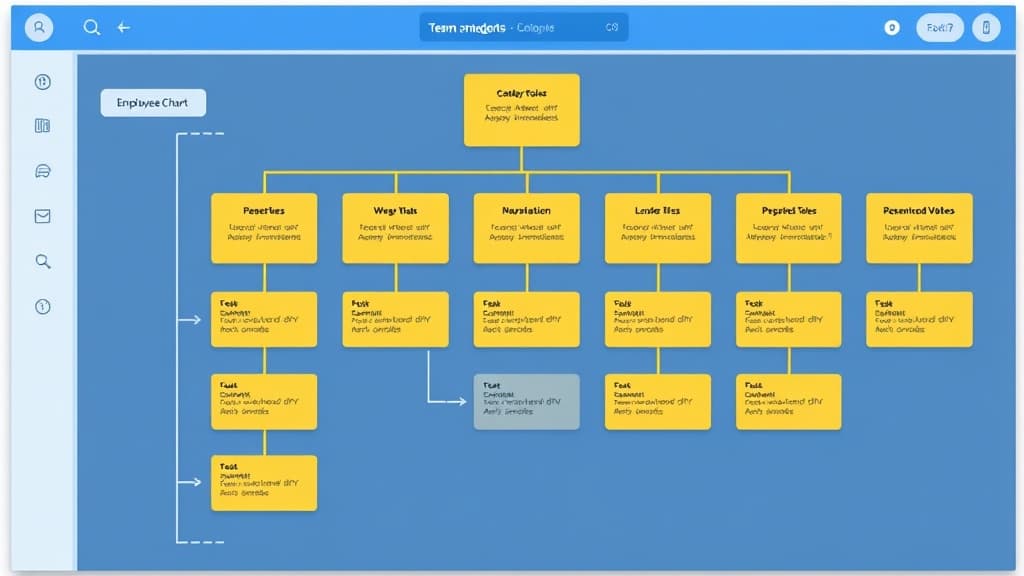
Orkelis provides flexible and granular management of your organization: services, sectors, roles, permissions, and user management. This guide explains how to structure your team effectively, from organizational hierarchy fundamentals to custom role creation and day-to-day employee management.
Prerequisites
- An Orkelis account with the Admin role for full management (service creation, role and user management).
- The Manager role is sufficient for day-to-day employee management within their services.
- At least one configured establishment (done automatically at account creation).
1. Understanding the organizational hierarchy
Organization in Orkelis is built around three hierarchical levels that reflect the actual structure of your establishment:
- Establishment (tenant): this is your overall structure. Each Orkelis account corresponds to a unique establishment (clinic, restaurant, store, warehouse, hotel). All data is siloed by establishment.
- Sectors: these are logical groupings within the establishment. A sector groups employees sharing a function or zone (e.g., "Surgery", "Reception", "Kitchen", "Fresh Produce", "Floor 2"). Sectors facilitate organization without impacting scheduling.
- Services: these are the concrete scheduling units. Each service has its own schedule. A service is usually linked to a sector (e.g., the "Morning Room A" service belongs to the "Surgery" sector, the "Restaurant Floor" service belongs to the "Service" sector).
This three-level hierarchy allows managing anything from a small 5-person team with a single service to a 500-employee establishment with dozens of services organized into sectors.
Multi-establishment: if you manage multiple establishments (e.g., a restaurant chain or a clinic group), the Enterprise plan allows creating multiple tenants and supervising them from a unified dashboard.
2. Manage services
Create a service
- Go to the Services page (/dashboard/services) in the sidebar.
- Click the Add a service button at the top right.
- Fill in the service information:
- Service name: choose a clear and explicit name (e.g., "Operating Room A", "Restaurant Floor Lunch", "Bakery Aisle", "Morning Delivery Team").
- Sector: link the service to an existing sector (optional but recommended for establishments with more than 3 services).
- Description: add an optional description for new managers.
- Click Save.
- The service appears in the list and is ready to receive employees and schedules.
Edit a service
To change the name, sector assignment, or description of a service, click on it in the service list. Modify the desired fields and click Save.
Delete a service
Deleting a service is an irreversible action that impacts associated schedules.
- Click on the service in the list.
- Click the Delete button.
- Orkelis displays an impact report detailing:
- The number of associated schedules (past and future).
- The number of employees assigned to this service.
- Absences and clockings linked to this service.
- Confirm the deletion if you are sure of your decision.
- Assigned employees are not deleted but must be reassigned to another service.
Deactivation rather than deletion: if a service is temporarily unused (e.g., seasonal closure), prefer deactivating it rather than deleting it. Historical data will be preserved and the service can be reactivated later.
3. Manage sectors
Sectors allow grouping employees by functional or geographic unit. They have no direct impact on scheduling but facilitate organization and filtering.
Create a sector
- On the Services page, click the Sectors tab at the top.
- Click Add a sector.
- Name the sector (e.g., "Surgery", "Reception", "Kitchen", "Logistics").
- Choose an identification color from the predefined colors. This color will be used in filters and reports.
- Click Save.
Assign employees to a sector
- Open an existing sector by clicking on it.
- In the Add an employee field, start typing the employee's name. Autocomplete suggests matches.
- Select the employee. They appear in the sector's list.
- An employee can belong to multiple sectors if needed.
- To remove an employee from a sector, click the cross next to their name.
Sector usefulness: in reports and statistics, you can filter by sector to get specific metrics (e.g., Surgery sector attendance rate, Kitchen sector overtime). Sectors are also useful for segmented payroll exports.
4. Standard roles
Orkelis offers 4 built-in role levels with increasing permissions. Each employee is assigned a role that determines their feature access:
Collaborator
- View their own schedule only.
- Submit leave requests.
- Clock their hours (mobile and kiosk).
- View their leave counters.
- View their profile and edit personal information.
Agent
- All Collaborator permissions.
- View their service's schedules (colleagues).
- View the team directory.
Manager
- All Agent permissions.
- Create, edit, and publish schedules for their services.
- Approve or reject leave requests.
- Manage absences (declaration, cancellation, replacement).
- View statistics and reports for their services.
- Validate timesheets.
- Export schedules as PDF, Excel, and CSV.
Admin
- All Manager permissions across all services.
- Manage users (creation, modification, deactivation).
- Manage services, sectors, and roles.
- Access establishment settings.
- Manage billing and subscription.
- Generate payroll exports.
- Manage API keys and webhooks.
- Log in as another user (impersonation).
Super Admin: a system role reserved for multi-establishment management (Enterprise plan). The Super Admin can supervise multiple tenants and access a consolidated dashboard.
5. Create custom roles
For specific needs, you can create custom roles that combine permissions of your choice. For example, a "Team Lead" role that can view schedules and statistics but cannot modify them.
- Go to Roles (/dashboard/roles) from the sidebar.
- Click Create a role.
- Fill in the role information:
- Name: an explicit name (e.g., "Team Lead", "HR", "Deputy Director").
- Description: a description of the role's scope.
- Base role: select the standard role it inherits from (Agent, Manager, or Admin).
- Color: choose an identification color.
- Configure specific permissions by category:
- Schedules: read only, read + write, read + write + publish.
- Absences: view, create, approve.
- Team: view, manage users.
- Time Tracking: view, validate timesheets.
- Reports: view, create, export.
- Settings: access establishment settings.
- Click Save.
- The role is created and can be assigned to employees.
Assign a custom role
- On the Roles page, click the created custom role.
- Use the Assign an employee field to attach employees.
- The custom role is added in addition to the employee's standard role.
- You can also assign the role from the employee's profile, in the Role field.
6. Manage users
Employees page
The Employees page (/dashboard/users) is the center for team management. It centralizes all operations on your employees' profiles.
- Search: filter the list by name, role, specialty, status (active/inactive), or service.
- Sort: sort by name, date added, contractual hours, or role.
- Bulk actions: select multiple employees via checkboxes to change their role, specialty, or service in one operation.
- CSV import: add multiple employees at once by importing a CSV file. Download the template to see the expected format.
- Export: export the employee list as CSV for your HR needs.
Edit an employee profile
- Click an employee in the list to open their profile.
- You can edit:
- Personal information: last name, first name, email, phone.
- Role and permissions: standard role and custom roles.
- Contractual hours: weekly hour volume.
- Specialty: professional qualification.
- Services: assignment to one or more services.
- Kiosk PIN code: 4-digit clocking code.
- Profile photo: avatar displayed on the schedule and team directory.
- Availability: recurring availability days and slots.
- Click Save to apply the changes.
Deactivate an employee
When an employee leaves the team, deactivate their profile rather than deleting it:
- Open the employee's profile.
- Click the Deactivate account button.
- Confirm the deactivation.
- The employee can no longer log in or appear on new schedules.
- Their historical data (past schedules, clockings, absences) is preserved.
- The profile can be reactivated at any time if the employee returns.
Impersonation: administrators can temporarily log in as an employee to verify their user experience. Click Log in as in the employee's profile. A yellow bar at the top of the screen indicates you are in impersonation mode. Click Return to my account to resume your session.
7. Team directory
The Team Directory page (/dashboard/directory) shows a visual view of your entire team:
- Each employee is represented by a card with their photo (or initials), name, role, and specialty.
- Cards are organized by service or sector depending on the selected filter.
- Click a card to go directly to the employee's profile.
- The directory is accessible to all logged-in users (including employees).
This is a practical tool for newcomers discovering the team and for managers handling large teams.
8. Team management best practices
- Complete profiles fully: contractual hours, specialties, and availability are essential for effective AI generation.
- Use roles sparingly: only assign the Admin role to people who truly need it. The Manager role is sufficient for operational schedule management.
- Update profiles regularly: when an employee changes contracts (full-time to part-time, new specialty), update their profile immediately.
- Deactivate rather than delete: preserve the history of employees who leave the team.
- Train your managers: managers should know the basic features (scheduling, absences, validation) to be autonomous.
- Use CSV import for new teams: this avoids typos and saves considerable time.
9. Troubleshooting
- Employee doesn't receive invitation email: check the email address in their profile. Resend the invitation via the Resend invitation button. The employee should check their spam folder.
- Employee doesn't see their schedule: verify they are assigned to the correct service in their profile. An employee without a service has no schedule.
- Custom role doesn't work as expected: check the permissions checked in the role definition. The inherited base role can influence the final permissions.
- CSV import fails: verify the file format matches the provided template. Most common errors: missing columns, duplicate emails, incorrect date format.
- Employee was deleted by mistake: if the profile was deactivated, it can be reactivated. If the profile was deleted, it must be recreated manually.
- Bulk actions don't apply: verify you have selected employees (checkboxes) before clicking the action button.
Audit: all modifications to user profiles are recorded in an audit log. View it in Settings > Audit to see who changed what and when.
Optimize your schedules with Orkelis
Try our intelligent scheduling solution for free and save time every week.
Stay informed
Get our guides and scheduling news straight to your inbox.
Related articles
Continue reading with these articles.
Guide: integrating the Orkelis public API
Integrate your schedules, absences, users, and clockings with your existing tools via the Orkelis REST API.
Guide: setting up kiosk time tracking
Turn a tablet into a shared time clock station with PIN code for your employees.
Guide: exports and reports
Export your schedules as PDF, Excel, or CSV and generate custom reports.