
Guide: exports and reports
Export your schedules as PDF, Excel, or CSV and generate custom reports.
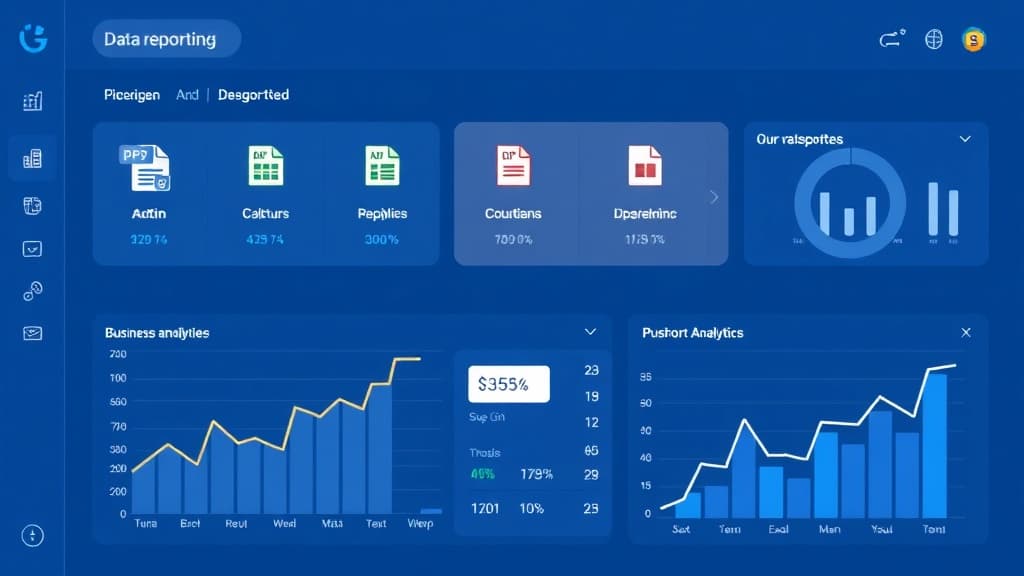
Orkelis allows you to export your schedules and HR data in multiple formats and generate custom reports. Whether you need a printable schedule for posting, an Excel file for analysis, a CSV for payroll integration, or tracking reports for your management, this guide covers all the possibilities.
Prerequisites
- A Manager or Admin role to access exports and reports.
- At least one published schedule for schedule exports.
- Recorded clockings for payroll exports.
- Payroll exports are exclusively reserved for administrators.
1. Export a schedule as PDF
The PDF export generates a professional A4 landscape document, ready to print or display in your premises. This is the most used format for internal communication.
- Go to the Schedule page (/dashboard/planning).
- Select the service and week you want to export.
- Click the Export button in the action bar at the top of the schedule.
- From the dropdown, select PDF.
- The file planning-YYYY-MM-DD.pdf is automatically downloaded to your downloads folder.
PDF content
The PDF document contains the following elements:
- Header: establishment name, service name, and period covered.
- Main table: grid with employees in rows and days in columns, with shift type, start time, and end time for each cell.
- Colors: shifts are colored by type for quick reading (same as on screen).
- Totals: weekly hours per employee in the last column.
- Footer: generation date and total number of employees.
Direct printing: if you prefer not to download the PDF, use the Print button in the Export menu. This opens your browser's print view, optimized for A4 landscape format. Ideal for quick printing.
PDF export options
Before generating the PDF, you can customize:
- Orientation: landscape (default) or portrait.
- Paper size: A4 (default), A3, or Letter.
- Include totals: yes or no.
- Include absences: show approved absences on the schedule.
2. Export as Excel (XLSX)
The Excel export generates a comprehensive workbook ideal for data analysis, pivot tables, and sharing with your management or HR department.
Excel file structure
The workbook contains two sheets:
- Schedule sheet: grid with employees in rows and days in columns, identical to the on-screen display. Cells are colored and totals are calculated automatically.
- Details sheet: flat list of all assignments with columns: Employee (first last name), Specialty, Date, Shift Type, Start Time, End Time, Duration, Status.
Export procedure
- On the Schedule page, select the desired service and week.
- Click Export > Excel.
- The .xlsx file is downloaded automatically.
- Open it with Microsoft Excel, Google Sheets, or LibreOffice Calc.
Excel tip: the Details sheet is ideal for creating pivot tables. Select all data, insert a pivot table, and analyze hour distribution by employee, shift type, or day.
Multi-week export
To export multiple weeks at once, select the desired date range before clicking Export > Excel. The file will contain one sheet per week plus a cumulative summary sheet.
3. Export as CSV
The CSV format is ideal for integration with third-party software: ERP, HRIS, BI (Business Intelligence) tools, or databases.
Schedule CSV export
- On the Schedule page, click Export > CSV.
- The file planning-YYYY-MM-DD.csv is downloaded.
The CSV file contains the following columns:
- Employee: first and last name.
- Specialty: employee qualification.
- Date: in DD/MM/YYYY format.
- Shift: shift type (Morning, Afternoon, Night, etc.).
- Start time: in HH:MM format.
- End time: in HH:MM format.
- Duration: in hours and minutes.
- Status: Published, Draft.
Hour counter CSV export
To extract your employees' hour counters:
- Go to Counters (/dashboard/counters) from the sidebar.
- Select the desired period (month or custom range).
- Click Export CSV.
- The file includes for each employee: contractual hours, planned hours, actual hours (clocking), variance, and balance.
Encoding: CSV files are encoded in UTF-8 with BOM for maximum compatibility with Excel. The separator is the semicolon (;), the French standard.
4. Payroll export
Payroll exports allow you to transmit clocking data to your payroll software. This feature is reserved for administrators.
- Go to Time Tracking > Payroll Exports (/dashboard/time/payroll-exports) in the sidebar.
- Select the export period: calendar month (e.g., March 2026) or custom range.
- Choose the export format suited to your payroll software:
- Generic CSV format: compatible with most software.
- Sage format: adapted for Sage Payroll software.
- Silae format: adapted for Silae software.
- Custom format: configure your own column mapping.
- Click Generate export.
- Review the data preview before downloading.
- Download the file and import it into your payroll software.
Data included in payroll export
- Employee ID or identifier.
- Last name and first name.
- Regular hours worked.
- Overtime.
- Night hours.
- Sunday and public holiday hours.
- Absences by type (leave, sick, training).
- Any shift-related bonuses.
Restricted access: payroll exports contain sensitive data. Only administrators can access them. An audit log records each generated export (date, user, period).
5. Custom reports
The report builder (/dashboard/reports) allows you to create custom reports by combining metrics and filters of your choice.
- Go to Reports from the sidebar (accessible to managers and admins).
- Click New report.
- Name your report (e.g., "Hours per employee - March 2026", "Attendance rate Q1").
- Select the desired metrics:
- Planned and actual hours per employee.
- Number of absences by type and employee.
- Attendance rate per service.
- Slot coverage rate.
- Overtime per employee.
- Variance between contractual and actual hours.
- Apply filters: period (week, month, quarter, year, custom), service, employee, specialty.
- Choose the visualization mode: table, bar chart, line chart, or pie chart.
- Click Generate to see the result.
- Export the report as PDF or Excel with the Export button.
- Optional: save the report as a template to easily regenerate it each month.
Scheduled reports: you can schedule automatic report delivery by email. Configure the frequency (weekly, monthly) and recipients in the report settings.
6. Statistics and KPIs
In addition to custom reports, Orkelis offers three preloaded analytics pages with key indicators:
Statistics page
Accessible from Statistics (/dashboard/statistics) in the menu. This page shows:
- Overall and per-service attendance rate (percentage of present vs. scheduled employees).
- Shift type distribution (pie chart: morning, afternoon, night).
- Total hours per employee (histogram to identify variances).
- Attendance rate trend over the last 12 months (line chart).
KPI dashboard
Accessible from KPIs (/dashboard/kpis). This dashboard consolidates performance indicators:
- Monthly absenteeism rate.
- Average overtime hours per employee.
- Average processing time for leave requests.
- Slot fill rate.
- Headcount evolution over 12 months.
Pareto view
The Pareto page (/dashboard/pareto) analyzes workload distribution to identify imbalances. It displays a Pareto chart showing which employees concentrate the most hours, helping identify overloads and better balance scheduling.
7. Best practices for exports
- Export the schedule as PDF every Friday for posting in the premises the following week.
- Generate the payroll export by the 5th of the following month at the latest to respect processing deadlines.
- Use scheduled reports to automatically receive your KPIs every Monday morning.
- Archive monthly exports in a shared folder to build an HR history.
- Verify hour totals before sending the payroll export: compare clocked hours and planned hours.
8. Troubleshooting
- PDF is empty: verify the schedule is published for the selected week. Draft schedules are not exported.
- Excel export won't open: make sure you have a recent version of Microsoft Excel (2016+), Google Sheets, or LibreOffice Calc.
- CSV is unreadable in Excel: when opening, use the data import wizard and select UTF-8 as encoding and semicolon as separator.
- Payroll export hours don't match: verify that clockings have been validated by managers in Time Tracking > Timesheets. Only validated clockings are included in payroll exports.
- Export button is grayed out: you don't have sufficient rights. Schedule exports are accessible to managers, payroll exports to admins only.
- Report generates no data: check your filters (period, service, employee). Broaden the criteria if necessary.
Data retention: Orkelis retains all your data for the entire duration of your subscription. You can export reports for any past period. After cancellation, data is retained for 90 days before permanent deletion.
Optimize your schedules with Orkelis
Try our intelligent scheduling solution for free and save time every week.
Stay informed
Get our guides and scheduling news straight to your inbox.
Related articles
Continue reading with these articles.
Guide: integrating the Orkelis public API
Integrate your schedules, absences, users, and clockings with your existing tools via the Orkelis REST API.
Guide: team and role management
Structure your organization: services, sectors, roles, permissions, and user management.

Guide: setting up kiosk time tracking
Turn a tablet into a shared time clock station with PIN code for your employees.