Guide: managing absences and leave
Declaration, validation, tracking, and finding replacements: the complete process for managers and employees.
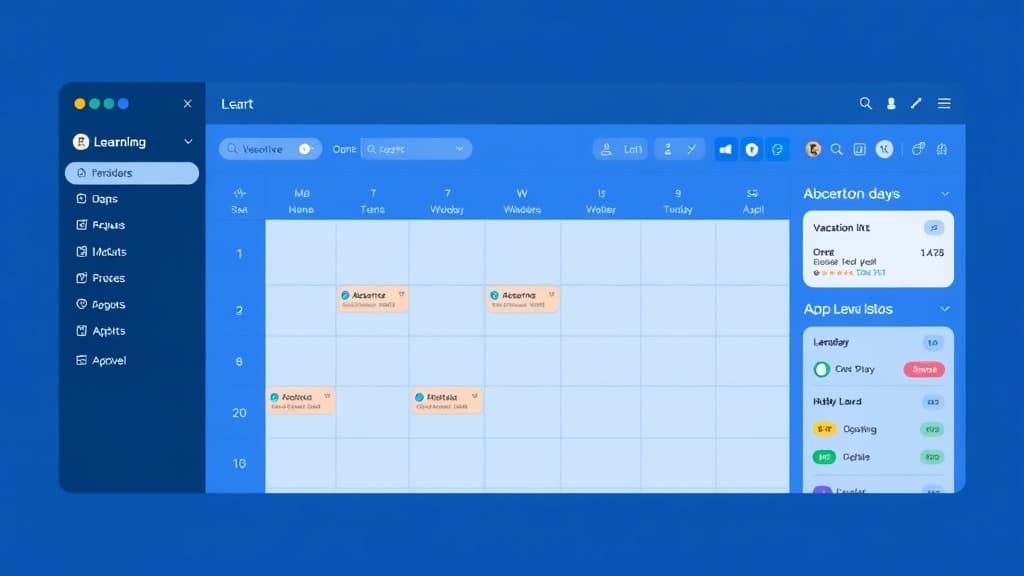
Orkelis centralizes your team's absence management: declaration, validation, balance tracking, and automatic replacement search. This guide covers the complete process for both managers and employees, from submitting a request to the automatic schedule update.
Prerequisites
- An active Orkelis account with an Agent role (for requests) or Manager/Admin role (for management).
- Employees assigned to at least one service.
- Absence types configured in Settings (default: Paid Leave, Unpaid Leave, Sick Leave, Training, Swap).
1. Declare an absence
As a manager or admin
Managers and administrators can declare an absence for any employee in their scope, without going through the request workflow:
- Go to the Absences page (/dashboard/absences) in the sidebar.
- Click the Declare an absence button at the top right.
- Select the relevant employee from the dropdown (with name search).
- Choose the absence type:
- Paid Leave: leave deducted from the employee's paid leave balance.
- Unpaid Leave: unpaid absence, no impact on PTO balance.
- Sick Leave: sick leave with option to attach a medical certificate.
- Training: professional training day.
- Swap: shift swap between two employees (the replacing employee is specified).
- Set the start date and end date of the absence.
- For a half-day, check the Half-day option and select Morning or Afternoon.
- Add a reason in the comment field if needed.
- Optional: attach a supporting document (PDF, JPEG, PNG, WebP — 10 MB maximum).
- Click Save. The absence is immediately created with "Approved" status.
Key difference: when a manager declares an absence, it is automatically approved. When an employee submits a request, it goes through the validation workflow.
As an employee (leave request)
Employees submit leave requests that must be approved by a manager before taking effect:
- Go to My Space > My Requests (/dashboard/my-requests) in the sidebar.
- Click New request.
- Fill in the complete form:
- Type: select the desired absence type from the dropdown.
- Start date and end date: select the period via the interactive calendar.
- Half-day: check if the request concerns a single half-day.
- Reason: briefly explain the reason for your request.
- Supporting document: attach a document if needed (medical certificate, summons, etc.).
- Review the summary of your request: number of days, dates, remaining leave balance.
- Click Submit my request.
- Your request appears in the list with Pending status (yellow badge).
- You receive a notification as soon as the manager makes their decision.
Instant notification: the manager receives a notification (push + email) as soon as a leave request is submitted. The faster the manager responds, the sooner you get an answer.
2. Approve or reject an absence
As a manager or administrator, you approve or reject your employees' leave requests:
- Go to the Requests page (/dashboard/requests) in the sidebar. A badge in the menu shows the number of pending requests.
- The list shows all pending requests with for each row: employee name, absence type, dates, duration, and submission date.
- Click a request to open the full detail.
- On the detail page, you see:
- Request information (type, dates, reason, attached document).
- The employee's current leave balance.
- The impact on the schedule: affected slots and resulting coverage level.
- The employee's recent absence history.
- Make your decision:
- Click the green checkmark icon (or the Approve button) to accept the request.
- Click the red cross icon (or the Reject button) to reject the request. A field allows you to indicate the reason for rejection.
- The employee is automatically notified of the decision via push notification and email.
- If the request is approved, the absence is automatically reflected on the schedule and leave counters are updated.
Centralized page: the Requests page (/dashboard/requests) consolidates all pending requests from all your services. The counter in the sidebar ensures you never forget an untreated request.
3. Cancel an absence
Canceling an absence depends on its current status:
- Pending status: the employee can cancel their own request. The manager can also cancel it. Click the trash icon in the Actions column and confirm.
- Approved status: only a manager or admin can cancel an approved absence. Cancellation removes the absence from the schedule and restores the employee's leave balance.
- Rejected status: no cancellation possible (the request has no effect).
When canceling an approved absence, shifts that had been removed from the schedule are not automatically recreated. The manager must manually reschedule the employee or rerun an AI generation.
4. Find a replacement
When an absence is approved and impacts the schedule, Orkelis can automatically search for a replacement for each vacant slot:
- On the Absences page, locate the approved absence that impacts the schedule.
- Click the Find a replacement icon (icon with two people and an arrow).
- Orkelis analyzes the slots affected by the absence and searches for candidates in your team.
- For each slot, a list of potential replacements is displayed with:
- The name of the available employee.
- A compatibility score (based on specialty, remaining hours before overrun, preferences).
- The hours already scheduled for that week.
- The employee's specialty.
- Click Accept next to the chosen candidate for each slot.
- The schedule is automatically updated with the replacement.
- The replacement receives a notification about their new assignment.
AI and replacement: if you use the Pro or Enterprise plan, Athena AI can automatically suggest the best replacement considering all constraints (hours, rest, specialties). The AI Replacement button appears next to each vacant slot.
5. Views and filters
The Absences page (/dashboard/absences) offers 4 viewing modes to suit your needs:
- List view: pageable table with all absences sorted by date. Ideal for detailed tracking with export option.
- Week view: weekly calendar showing absences day by day. Ideal for seeing the impact on the current week.
- Month view: monthly calendar with an absence overview per employee. Ideal for medium-term planning.
- Year view: 12-month timeline showing absence distribution. Ideal for identifying critical periods (summer, holidays).
Available filters
Each view offers combinable filters to refine the display:
- Status: All, Pending, Approved, Rejected, Canceled.
- Type: Paid Leave, Unpaid Leave, Sick Leave, Training, Swap.
- Employee: filter by employee (search field with autocomplete).
- Specialty: filter by employee specialty to see the impact on a qualification.
- Year: select the viewing year (last 5 years available).
- Service: filter by service for multi-service managers.
6. Leave balance and counters
Orkelis automatically tracks each employee's leave counters. Balances are updated in real time with each approval or cancellation.
Manager view
- Go to Counters (/dashboard/counters) in the sidebar.
- The table shows for each employee: paid leave balance, compensatory time off, leave taken, remaining balance.
- Click an employee to see the month-by-month detail.
- Use the Export CSV button to extract counters to a spreadsheet.
Employee view
Each employee can view their own counters from My Space > My Counters. They can see their paid leave balance, days taken, days remaining, and absence history.
Secure documents: attachments to leave requests (medical certificates, attestations, summons) are stored encrypted and are only accessible to the relevant service managers and administrators. Accepted formats: PDF, JPEG, PNG, WebP. Maximum size: 10 MB per file.
7. Best practices for absence management
- Process requests within 48h: a fast response time reassures your employees and allows them to plan ahead.
- Anticipate peak periods: check the Year view at the beginning of the year to identify months with many requests (summer, Christmas) and plan accordingly.
- Train your employees to use the mobile app: the more they submit requests via the app, the fewer informal requests you'll have to manage.
- Check the schedule before approving: review the schedule impact (shown in the request detail) before approving an absence to avoid understaffing.
- Use automatic replacement: don't leave a slot vacant after approving an absence. Use the Find a replacement function immediately.
8. Troubleshooting
- Employee cannot submit a request: verify their account is active and they have the Agent role or higher.
- Leave balance shown is incorrect: check counter settings in Settings > Leave Counters. Accrual and carryover rules must match your collective agreement.
- Approved absence doesn't appear on schedule: verify that the absence dates overlap with the schedule week being viewed. Refresh the page if needed.
- Supporting document won't upload: verify the file is under 10 MB and in PDF, JPEG, PNG, or WebP format.
- Manager doesn't receive request notifications: check their notification settings in Profile > Notification Settings. Also verify they are indeed a manager of the relevant service.
- Cancellation doesn't restore the schedule: after canceling an approved absence, shifts must be manually recreated by the manager.
Compliance: Orkelis maintains a complete and unalterable history of all requests, decisions, and modifications. This history is viewable in the History tab of each absence and can be exported for audit purposes.
Optimize your schedules with Orkelis
Try our intelligent scheduling solution for free and save time every week.
Stay informed
Get our guides and scheduling news straight to your inbox.
Related articles
Continue reading with these articles.
Guide: integrating the Orkelis public API
Integrate your schedules, absences, users, and clockings with your existing tools via the Orkelis REST API.
Guide: team and role management
Structure your organization: services, sectors, roles, permissions, and user management.
Guide: setting up kiosk time tracking
Turn a tablet into a shared time clock station with PIN code for your employees.