Guide: getting started with Orkelis
Create your account, add your employees, and build your first schedule in minutes.
Welcome to Orkelis! This comprehensive guide walks you through getting started with the platform, from creating your account to publishing your first schedule. Whether you manage a team of 5 or 500, you will be up and running in less than 30 minutes.
Prerequisites
Before starting your Orkelis setup, make sure you have the following:
- A recent web browser (Chrome, Firefox, Safari, or Edge in its latest version).
- A valid professional email address for the admin account.
- A list of your employees with their names, emails, and contractual weekly hours.
- Your establishment name and business sector (healthcare, restaurant, retail, logistics, hospitality).
- Optional: a CSV file of your employees if you want to do a bulk import.
Preparation tip: gather your employees' work contracts before starting. You will need their contractual weekly hours, specialties, and qualifications to correctly configure each profile.
1. Create your account
Account creation takes less than 2 minutes. Your 14-day free Pro trial starts immediately, with no credit card required.
- Go to orkelis.app/register in your browser.
- Enter your first name, last name, professional email address, and choose a secure password (minimum 8 characters, with at least one uppercase letter and one number).
- Enter your establishment name as it will appear in the application (e.g., "Saint-Louis Clinic", "Le Provencal Restaurant").
- Select your business sector from the dropdown: healthcare, restaurant, retail, logistics, hospitality, or other.
- Accept the terms of service and privacy policy.
- Click Create my account.
- You are automatically logged in with a 14-day Pro trial giving access to all features.
Quick sign-in: you can also sign up via Google or Microsoft from the login page. This saves you from creating a new password and speeds up daily login.
Confirm your email address
A confirmation email is sent to the address provided during registration. Click the verification link within 24 hours to fully activate your account. If you don't receive the email, check your spam folder or request a resend from the login page.
2. Discover the dashboard
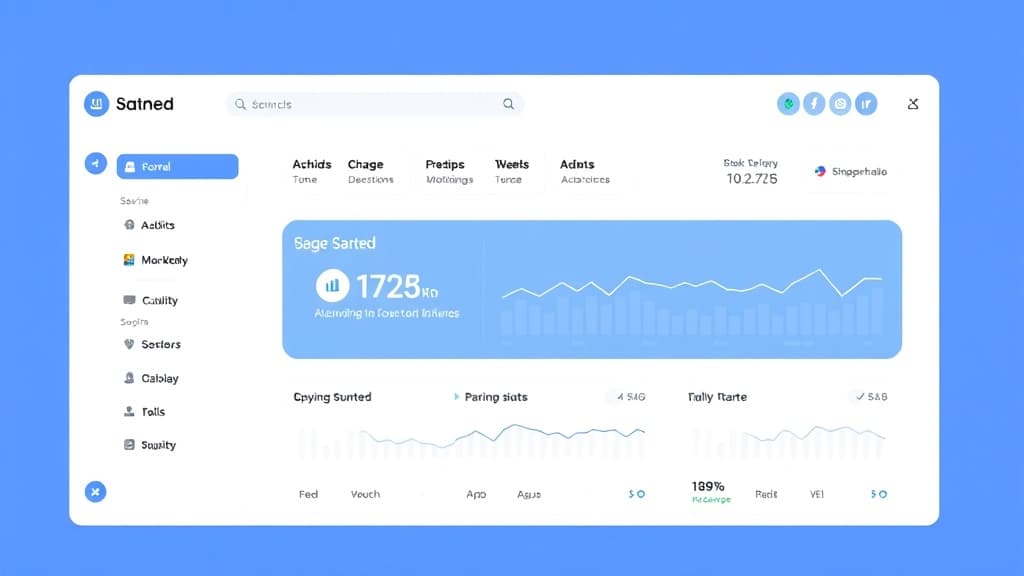
After logging in, you land on the Overview page (/dashboard). This is your daily command center. You will find:
- A summary of the current week: number of scheduled employees, pending absences, total planned hours.
- Recent notifications: submitted leave requests, schedule changes, system alerts.
- Quick access to the schedule, absences, and requests via clickable cards.
- A coverage indicator: percentage of filled positions for the week.
The left sidebar gives you access to all platform features. It is organized into sections: Schedule, Absences, Team, Time Tracking, Reports, and Settings. Each section has badges indicating items requiring your attention (pending requests, alerts, etc.).
Navigation tip: you can collapse the sidebar by clicking the hamburger icon at the top left to save space on smaller screens. The menu expands on hover.
3. Configure your establishment settings
Before creating your first services and adding your employees, take a few minutes to configure the basic settings of your establishment.
- Go to Settings in the sidebar.
- In the Establishment tab, verify and complete the name, address, and time zone.
- In the Shift Types tab, configure the shifts you use: Morning (e.g., 6 AM - 2 PM), Afternoon (e.g., 2 PM - 10 PM), Night (e.g., 10 PM - 6 AM), Day (e.g., 9 AM - 5 PM). You can customize hours and colors.
- In the Specialties tab, add your employee qualifications if needed (e.g., RN, NA, HCA in healthcare; head waiter, commis in restaurant).
- In the Notifications tab, configure notification channels (email, mobile push, in-app).
Best practice: define shift types with distinct colors. This makes the schedule much more readable at a glance. For example, blue for morning, orange for afternoon, purple for night.
4. Create a service
A service represents a scheduling unit within your establishment. Depending on your business, a service can correspond to a floor, a workstation, an aisle, a restaurant zone, or a functional team.
- In the sidebar, click Services.
- Click the Add a service button at the top right.
- Give the service a clear and explicit name (e.g., "Operating Room A", "Restaurant Floor", "Fresh Produce Aisle", "Morning Delivery Team").
- Optional: link the service to an existing sector for hierarchical organization.
- Save with the Save button.
You can create as many services as needed. Each service has its own independent schedule, allowing different managers to handle their scope without interference.
Organization by sectors: sectors allow you to group multiple services under a single entity. For example, the "Surgery" sector can contain the services "Room A", "Room B", and "Recovery Room". Create sectors from the Sectors tab on the Services page.
5. Add your employees
Adding your employees is the most important step. Each employee must have a complete profile for scheduling and hour calculations to be accurate.
Individual addition
- Go to Team > Employees via the sidebar.
- Click Add an employee.
- Fill in the required information: first name, last name, email address.
- Select the role: Employee (limited view), Agent (service view), Manager (schedule management), or Admin (full access).
- Specify the contractual weekly hours (e.g., 35h, 39h, part-time 24h).
- Indicate the specialty if applicable (e.g., RN, NA in healthcare; server, cook in restaurant).
- Assign the employee to one or more services.
- Click Save. The employee receives an invitation email to activate their account.
Bulk import via CSV
For teams of more than 10 people, CSV import is much faster:
- On the Employees page, click the Import CSV button.
- Download the CSV template by clicking Download template.
- Fill in the file with your employees' information: first name, last name, email, role, contractual hours, specialty.
- Upload the filled file.
- Review the preview and correct any flagged errors.
- Confirm the import. All employees receive an invitation email.
Tip: assign the Manager role only to people who need to create or modify schedules. Other employees only need the Agent role to view their schedule and submit requests.
6. Create your first schedule
It is time to build your first schedule! Orkelis offers an intuitive week-by-week grid.
- Go to Schedule from the sidebar.
- Select the relevant service from the dropdown at the top of the page.
- The grid displays the current week with your employees in rows and days in columns (Monday to Sunday).
- Click an empty cell at the intersection of an employee and a day to add a shift.
- In the window that opens, choose the shift type (Morning, Afternoon, Night, etc.), the start time, and the end time.
- Confirm. The shift appears in the cell with its color.
- Repeat for each employee and each day of the week.
- Check the hour totals at the bottom of each employee's column (Orkelis calculates automatically).
- Once satisfied, click Publish the week in the action bar to notify your teams.
Copy-paste shortcut: if your schedule is similar from week to week, use the Copy week button in the action menu. Select the source week and Orkelis will reproduce the schedule identically for the target week. You will only need to adjust exceptions.
Understanding schedule indicators
While building the schedule, Orkelis displays several real-time indicators:
- Planned hours per employee: weekly total displayed at the end of each row. Exceeding contractual hours is flagged in red.
- Coverage per slot: number of scheduled employees by shift type and day.
- Alerts: warning icons if an employee is scheduled for two shifts on the same day, if minimum rest is not respected, or if an employee is on leave.
- Health score: overall badge indicating schedule quality (green = optimal, orange = improvable, red = issues).
7. Publish and notify your team
Once the schedule is finalized, publishing makes it visible to your employees:
- Click Publish the week in the action bar at the top of the schedule.
- Confirm the publication in the dialog window.
- All service employees receive a notification (mobile push + email depending on settings).
- The schedule changes from "Draft" to "Published" status. Subsequent changes trigger change notifications.
Best practice: publish your schedule at least one week in advance to give your employees time to organize. Most collective agreements require an advance notice period (usually 7 days).
8. Next steps
Congratulations, you have configured your establishment and published your first schedule! Here are the next steps to get the most out of Orkelis:
- Generate a schedule with AI: let the Athena engine automatically create an optimized schedule respecting all your constraints.
- Manage absences: configure the leave validation workflow to streamline requests.
- Install the mobile app: invite your employees to download the iOS or Android app to view their schedule in real time.
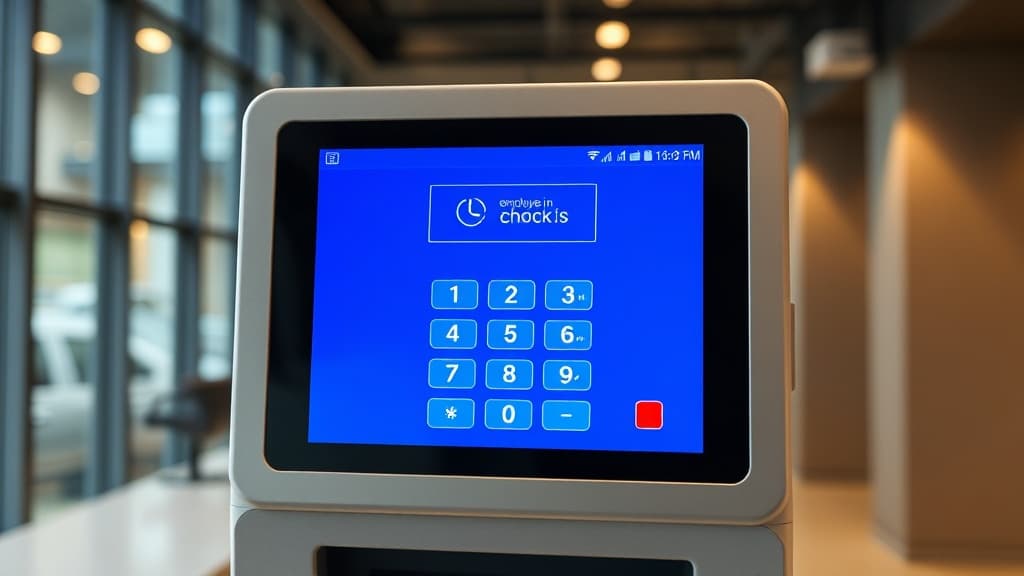
- Set up kiosk time tracking: turn a tablet into a time clock station with PIN code to track actual hours.
- Explore exports and reports: generate PDF, Excel, or CSV reports for your payroll and analysis.
Startup troubleshooting
Here are the most common issues encountered during first setup and their solutions:
- I don't receive the confirmation email: check your spam/junk folder. Add [email protected] to your contacts. If the problem persists, use the Resend email button on the login page.
- My employee doesn't receive the invitation: verify that the email address entered is correct. You can resend the invitation from the employee's profile in Team > Employees.
- I don't see my employees on the schedule: make sure employees are assigned to the correct service. An employee not assigned to a service won't appear on that service's schedule.
- The hours don't match: verify the contractual hours in each employee's profile and ensure the establishment's time zone is correct.
- The login page loops: clear your browser cache or try in private browsing. Make sure you're using the URL orkelis.app (not an old URL).
Support: if you encounter an issue not resolved by this guide, contact our support team via the chat at the bottom right of the app or by email at [email protected]. We respond within 24h on business days.
Optimize your schedules with Orkelis
Try our intelligent scheduling solution for free and save time every week.
Stay informed
Get our guides and scheduling news straight to your inbox.
Related articles
Continue reading with these articles.
Guide: integrating the Orkelis public API
Integrate your schedules, absences, users, and clockings with your existing tools via the Orkelis REST API.
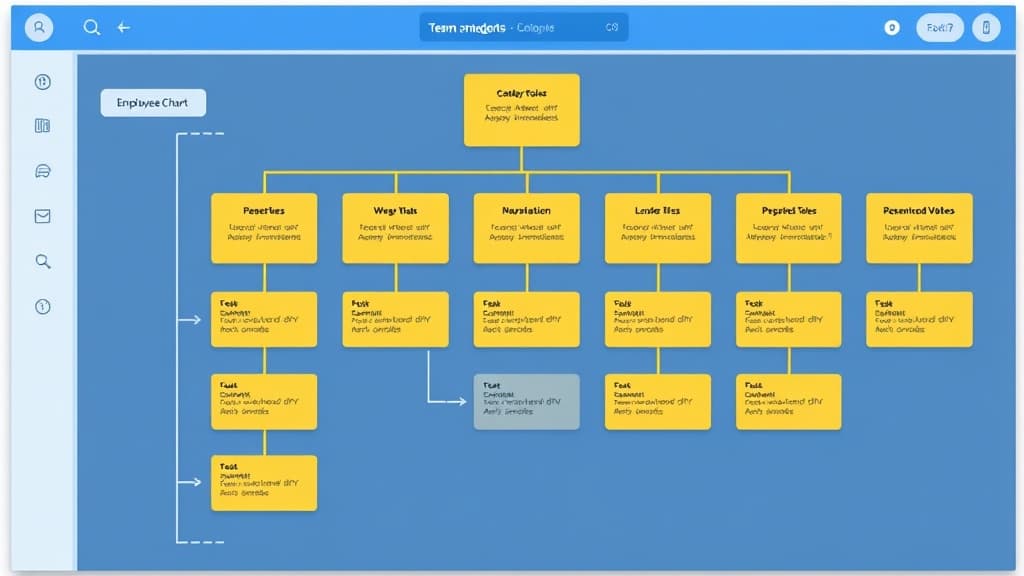
Guide: team and role management
Structure your organization: services, sectors, roles, permissions, and user management.
Guide: setting up kiosk time tracking
Turn a tablet into a shared time clock station with PIN code for your employees.