Guide: using the Orkelis mobile app
Install the iOS/Android app to view your schedule, clock your hours, and submit requests from your phone.
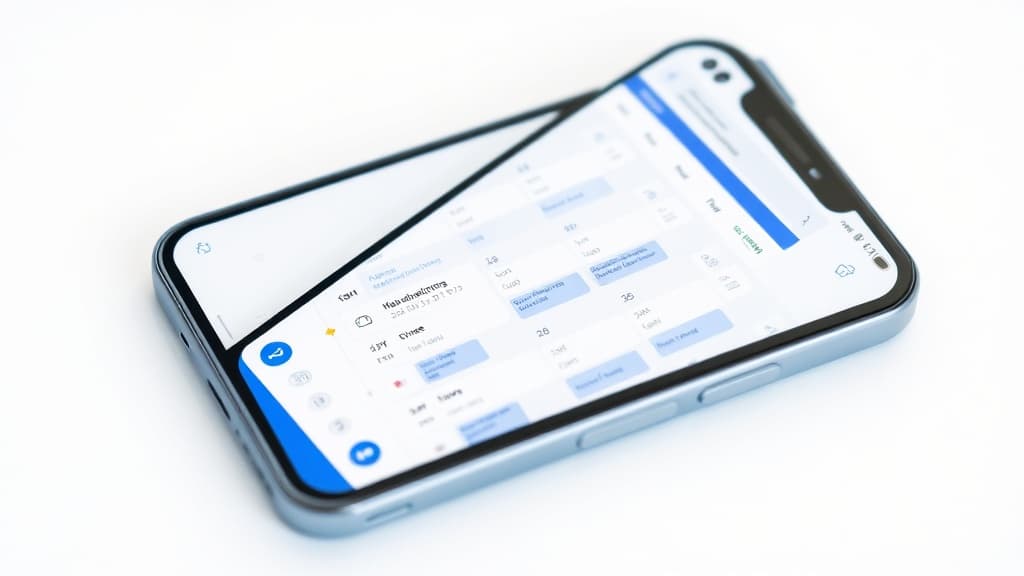
Orkelis has a native mobile application for iOS and Android. It allows your employees to view their schedule, clock their hours, submit leave requests, and receive real-time notifications directly from their phone. This guide covers installation, setup, and daily usage for both employees and managers.
Prerequisites
- A smartphone running iOS (iPhone 12 or later, iOS 16 minimum) or Android (Android 10 minimum).
- An internet connection (Wi-Fi or mobile data).
- An active Orkelis account: your administrator must have created your profile and sent you an invitation email.
- Login credentials (email and password) or a linked Google/Microsoft account.
1. Install the application
On iOS (iPhone / iPad)
- Open the App Store on your Apple device.
- Tap the Search tab at the bottom of the screen.
- Type Orkelis in the search bar and confirm.
- Find the app with the Orkelis logo (blue background, calendar icon).
- Tap Get, then confirm with Face ID, Touch ID, or your Apple password.
- Wait for the download to complete. The app appears on your home screen.
On Android
- Open the Google Play Store on your Android device.
- Tap the search bar at the top of the screen.
- Type Orkelis and select the app from the results.
- Tap Install and accept the requested permissions.
- Once installed, the app appears in your app drawer.
Web alternative: if the native app is not yet available on your store or your device is not compatible, you can access Orkelis from the mobile browser at orkelis.app. The interface is fully responsive and offers the same features. On iOS, you can add the site to your home screen for quick access (Share button > Add to Home Screen).
2. Log in
On first launch, the app displays the login screen. Several methods are available:
Email and password login
- Open the Orkelis app.
- Enter your email address (the one used for your Orkelis account).
- Enter your password.
- Tap Sign in.
- If you forgot your password, tap Forgot password and follow the instructions sent by email.
Google or Microsoft login
- On the login screen, tap Continue with Google or Continue with Microsoft.
- Select your professional account from the list.
- Authorize Orkelis to access your basic information (name and email).
- You are automatically logged in.
SSO login (enterprise)
If your company has configured single sign-on (SSO), your administrator will provide a dedicated login link. Open this link in your phone's browser; it will redirect you to the app after authentication.
Security: the app securely stores your session. You won't need to log in again each time you open the app, unless you manually log out or your session expires (after 30 days of inactivity).
3. Home screen and navigation
Once logged in, you reach the app's home screen. Navigation is done via the tab bar at the bottom of the screen:
- Home: summary of your day (next shift, weekly hours, notifications).
- Schedule: your complete weekly schedule.
- Time Tracking: clock-in and clock-out interface.
- Requests: your leave requests and their status.
- Profile: your personal information, counters, and settings.
Managers have additional tabs to access their team's schedule and pending validation requests.
4. View your schedule
The Schedule screen shows your current week's schedule in a readable and colorful format:
- Each row represents a day of the week (Monday to Sunday).
- Shifts are displayed with a color code, start time, end time, and shift type (Morning, Afternoon, Night, etc.).
- Rest days appear without a shift, with the label "Rest" in gray.
- Approved absence days are marked with the absence type (Leave, Sick, etc.).
Navigating between weeks
- Swipe left to see the next week.
- Swipe right to see the previous week.
- Tap the Today button at the top of the screen to return to the current week.
- Tap a specific date in the mini-calendar to navigate directly to that week.
See your colleagues
Tap a shift to open the detail. You will see colleagues scheduled on the same slot, so you know who you are working with that day. The detail also shows the service, shift duration, and any manager notes.
Tip: enable the monthly view by tapping the calendar icon at the top right for an overview of your month. Worked days are colored, rest and absences clearly identified.
5. Clock your hours
Mobile clocking allows you to record your work hours directly from your phone. This feature must be enabled by your administrator.
- Go to the Time Tracking tab (clock icon in the navigation bar).
- The screen shows your shift for the day with the planned start and end times.
- Tap the green Clock in button at the start of your service.
- The exact time is recorded and a confirmation message is displayed.
- At the end of your service, return to the Time Tracking tab.
- Tap the red Clock out button.
- The departure time is recorded. Your effective working time is calculated automatically.
Clocking history
Below the clocking button, you'll find your clocking history for the current week showing for each day: arrival time, departure time, effective duration, and variance from the planned schedule.
Geolocation: if your employer has enabled geofencing, clocking will only be possible when you are within the authorized geographic zone (usually within a 200-meter radius of the establishment). An error message appears if you are outside the zone.
6. Submit a leave request
The app allows you to submit leave requests without going through the manager's office. Everything is done from your phone:
- Go to the Requests tab (document icon in the navigation bar).
- Tap the New request button at the top of the screen.
- Select the request type: Paid Leave, Unpaid Leave, Sick Leave, Training, or Swap.
- Set the start date and end date using the date picker.
- For a half-day, enable the Half-day option and select Morning or Afternoon.
- Add a reason in the text field (required for certain absence types).
- If needed, attach a supporting document by tapping Add a file. You can take a photo directly or select a file (PDF, JPEG, PNG — 10 MB maximum).
- Review the summary of your request and tap Send.
Tracking your requests
All your requests are listed in the Requests tab with their current status:
- Pending (yellow badge): the request has been submitted and awaits the manager's decision.
- Approved (green badge): your leave has been accepted. It will automatically appear on your schedule.
- Rejected (red badge): your request has been rejected. The reason for rejection is indicated.
- Canceled (gray badge): you canceled your own request before the manager's decision.
Leave balance: check your leave counters in the Profile tab > My Counters. You will see your paid leave balance, compensatory time off, and other counters configured by your employer.
7. Push notifications
Push notifications are essential to stay informed in real time. Here are the events that trigger a notification:
- Schedule publication: your manager has published next week's schedule. Tap the notification to view it immediately.
- Request decision: your leave request has been approved or rejected.
- Shift change: a schedule change concerning you has been made.
- Clocking reminder: if you haven't clocked in 15 minutes after your planned shift start.
- Messages: if internal messaging is enabled by your administrator.
- Team alert: your manager has sent a message to the entire team.
Configure notifications
- Open the Profile tab in the app.
- Tap Notification Settings.
- Enable or disable each notification type according to your preferences.
- Make sure notifications are authorized in your phone's settings (Settings > Orkelis > Notifications on iOS, or Settings > Apps > Orkelis > Notifications on Android).
Important: on first app launch, allow notifications when the prompt appears. If you declined by mistake, go to your phone's settings to re-enable them manually.
8. Manager features
If you have a Manager or Admin role, the mobile app gives you additional features:
- Team view: view all your employees' schedules from the Team tab.
- Request validation: approve or reject leave requests directly from your phone. Tap a pending request to see the detail and the Approve / Reject buttons.
- Coverage alerts: receive a notification if a slot is understaffed after an absence.
- Quick statistics: view planned and actual hours for your team for the week.
9. Offline mode
The app works partially in offline mode. If you lose internet connection:
- The current week's schedule remains viewable (it is cached locally).
- Clocking is recorded locally and will be automatically synced once the connection is restored.
- Leave requests can only be submitted with an active connection.
10. Troubleshooting
Here are the most common issues encountered on the mobile app and their solutions:
- Cannot log in: verify you are using the correct email address (your Orkelis account one). Use Forgot password to reset your password. If using Google/Microsoft, make sure to select the right account.
- Empty schedule: your manager may not have published the schedule for the week you are viewing. Check with them. If the schedule is published but invisible, force a sync by pulling the screen down.
- Clocking refused (out of zone): move closer to your workplace. Geofencing has a radius configured by your employer. If you believe you are in the zone, check that location is enabled on your phone.
- Clocking refused (no shift): you can only clock in if a shift is assigned to you for the day. Contact your manager if a shift is missing.
- No notifications: check permissions in your phone's settings. On Android, also check that battery optimization is not blocking Orkelis (Settings > Battery > Orkelis > No restriction).
- App is slow or crashes: update the app to the latest version from the App Store or Play Store. If the problem persists, uninstall and reinstall the app.
- Error "Session expired": your session expired after 30 days of inactivity. Log in again normally.
Updates: always keep the app up to date to benefit from the latest features and bug fixes. Enable automatic updates in your store to never miss an update.
Optimize your schedules with Orkelis
Try our intelligent scheduling solution for free and save time every week.
Stay informed
Get our guides and scheduling news straight to your inbox.
Related articles
Continue reading with these articles.
Guide: integrating the Orkelis public API
Integrate your schedules, absences, users, and clockings with your existing tools via the Orkelis REST API.
Guide: team and role management
Structure your organization: services, sectors, roles, permissions, and user management.
Guide: setting up kiosk time tracking
Turn a tablet into a shared time clock station with PIN code for your employees.